

Unlock the full potential of your Emma.
Activate all Pro features with a single code—right on your existing Emma Wired Essential.
Pro features

Pro
Heating and cooling
Two seasons. One thermostat. Warm in winter, cool in summer. Use the "Emma" setting to switch between heating and cooling. With OpenTherm, your heat pump adjusts automatically. With the "On/Off" setting, you’ll also need to switch the heat source manually.

Pro
Dew point protection in cooling.
Emma measures humidity and shares it with your heat pump via OpenTherm. Thus, the system can calculate the dew point and automatically prevent condensation during cooling.
Pro
Wireless communication via zigbee.
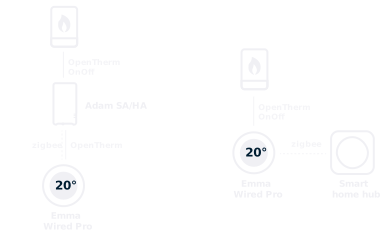
Emma is one of the few thermostats you can pair via zigbee. She communicates with the Adam HA hub to unlock additional features such as app controls, schedules and smart controls. Or pair Emma directly with another smart-home hub to control your heating and cooling within your own smart environment.

Pro
Outdoor sensor temperature
If your heat source has an outdoor sensor, it shares the outdoor temperature with Emma via OpenTherm. Emma then shows the outside temperature on the display.
Pro features with Adam HA hub

Pro + Adam HA hub
Outdoor temperature and weather type, without outdoor sensor.
When Emma is connected to the Adam HA hub via Zigbee, it shows the outdoor temperature and weather type from a nearby weather station directly on the display. The reading is often more accurate than an outdoor sensor, which is sometimes disturbed by sun or wind. So in summer, you know exactly when to close the windows to keep the coolness in.

Pro + Adam HA hub
Always up-to-date
Through the Adam HA hub, Emma automatically receives firmware updates. This keeps it safe, reliable and ready for new features.
How does the upgrade work?
1. Find the Device ID of Emma
From firmware 09 (from 02-2026):
Touch the top of Emma for 5 seconds to open the Upgrade screen.
The Device ID is immediately visible.
Older firmwares:
Click the front of Emma loose from the back with a downward motion.
The Device ID is on the sticker on two lines.
For example:
60EFABFF
FE899668
That is a Device ID of 1 line: 60EFABFFFE899668
1. Enter the Device ID at the time of purchase
Enter the Device ID in the input field above the buy button, add to cart and complete payment.
2. You will receive by email the activation code
After purchase, you will automatically receive an activation code in your mailbox.
3. Enter the activation code on the Emma.
Tap the top of Emma for 5 seconds to open the Upgrade screen.
Tap the bottom right to select "Enter activation code."
Tap the top for enter.
Now enter the activation code using the keyboard.
Tap the bottom right for the check mark to activate the code.
4. Emma has been upgraded to Emma Wired Pro.
Additional features such as cooling and wireless connectivity are immediately active.
Important - digital upgrade, no right of withdrawal
The upgrade code is unique and linked to the MAC address you provide. Delivery takes place digitally (by email) and cannot be reversed. Cancellation or returns are not possible once the code has been sent. Therefore, please check the MAC address carefully before purchase. By ordering you agree to direct delivery of digital content and waive the right of withdrawal (Art. 6:230p BW).
Frequently Asked Questions
How do I know if I already have an Emma Wired Pro?
You can easily see it on your Emma's screen:
- Emma Wired Essential: There is no icon visible on the left side of the screen.
- Emma Wired Pro: On the left side of the screen, you'll always see a small icon—it's either the weather type and outdoor temperature from the outdoor sensor or Adam HA, or a network symbol (when not connected via Zigbee).
Do I need new hardware?
No, the Emma Wired Essential's existing hardware already supports these features. The upgrade is entirely software-based.
How do I receive the activation code?
After purchase, you will automatically receive an email with your personal activation code.
Where can I find the Device ID I need to enter?
Detach the front of Emma from the back with a downward motion.
The Device ID is printed on the sticker on two lines.
For example:
60EFABFF
FE899668
That is a 1-line Device ID: 60EFABFFFE899668
What if I enter the wrong Device ID when purchasing?
The activation code is uniquely associated with the specified Device ID. So check this carefully; a wrong address means the code will not work.
How do I enter the activation code?
Tap the top of Emma for 5 seconds to open the Upgrade screen.
Tap the bottom right to select "Enter activation code."
Tap the top for enter.
Now enter the activation code using the keyboard.
Tap the bottom right for the check mark to activate the code.
What will change after the upgrade?
After entering the activation code, your Emma automatically reboots with Pro functionality. You will then see additional options for cooling, zigbee and more.
Can I undo the upgrade?
No, the upgrade is permanently linked to your device.
Will my settings be retained?
Yes, all your existing settings will be preserved after the upgrade.
Can I cancel or return the upgrade?
No, the upgrade cannot be canceled or returned.
The activation code is unique and directly linked to the specified Device ID.
Because the software cannot be undone after activation, the right of withdrawal expires once the activation code is delivered.
What if I haven't used the activation code yet?
Once the activation code is sent by email, it is considered delivered. Therefore, we cannot cancel the purchase even if the code has not yet been entered.
